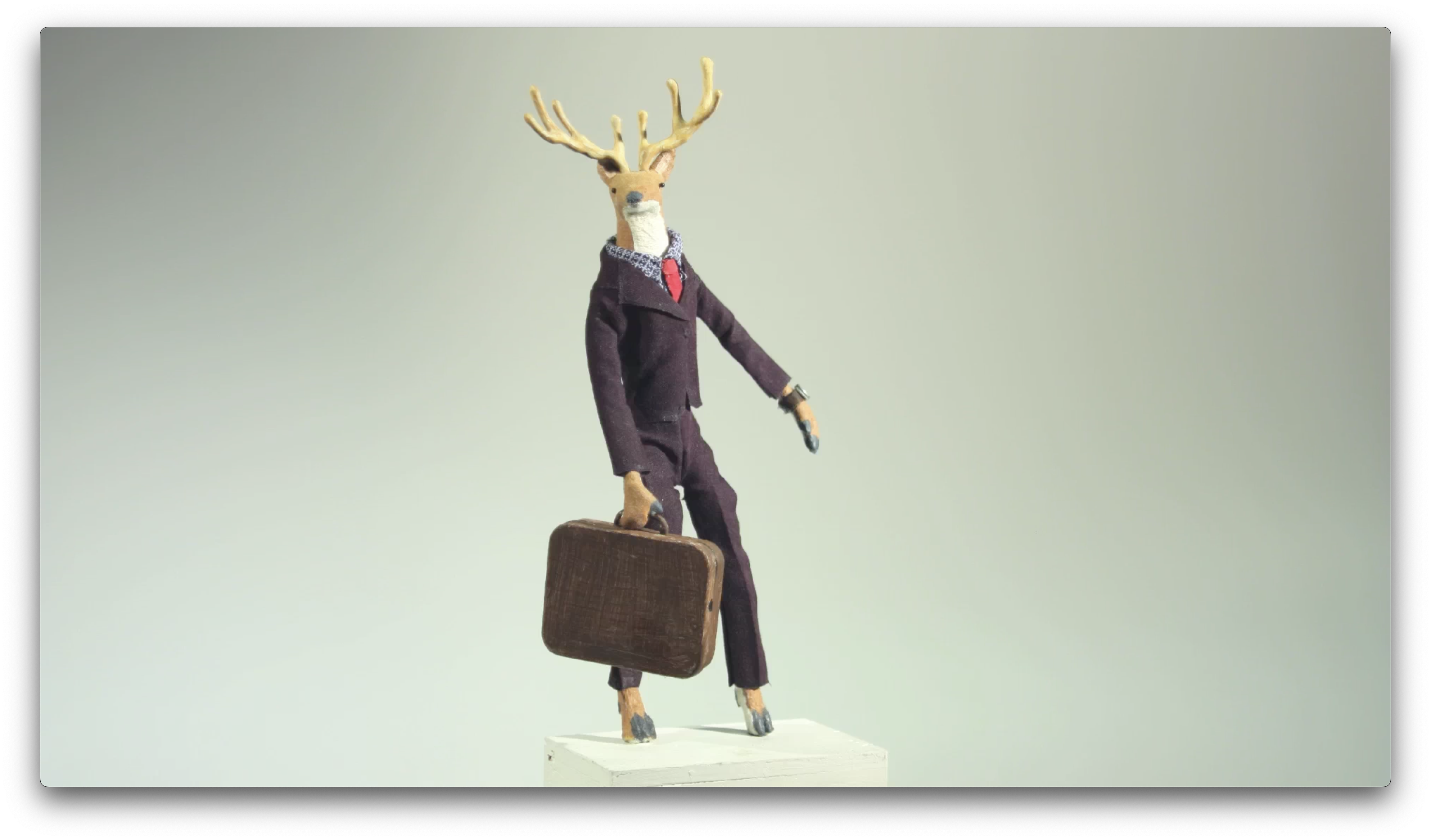
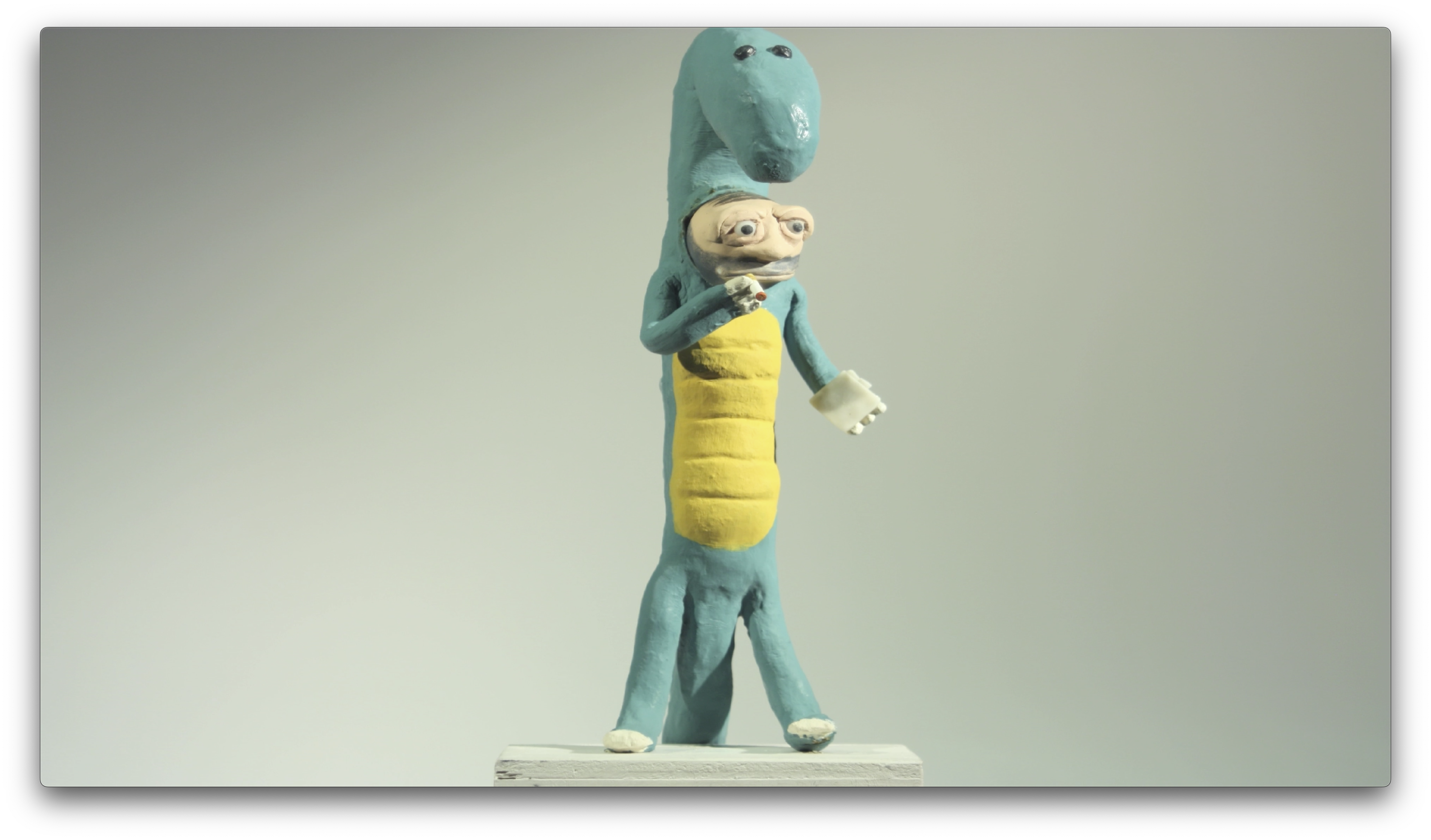
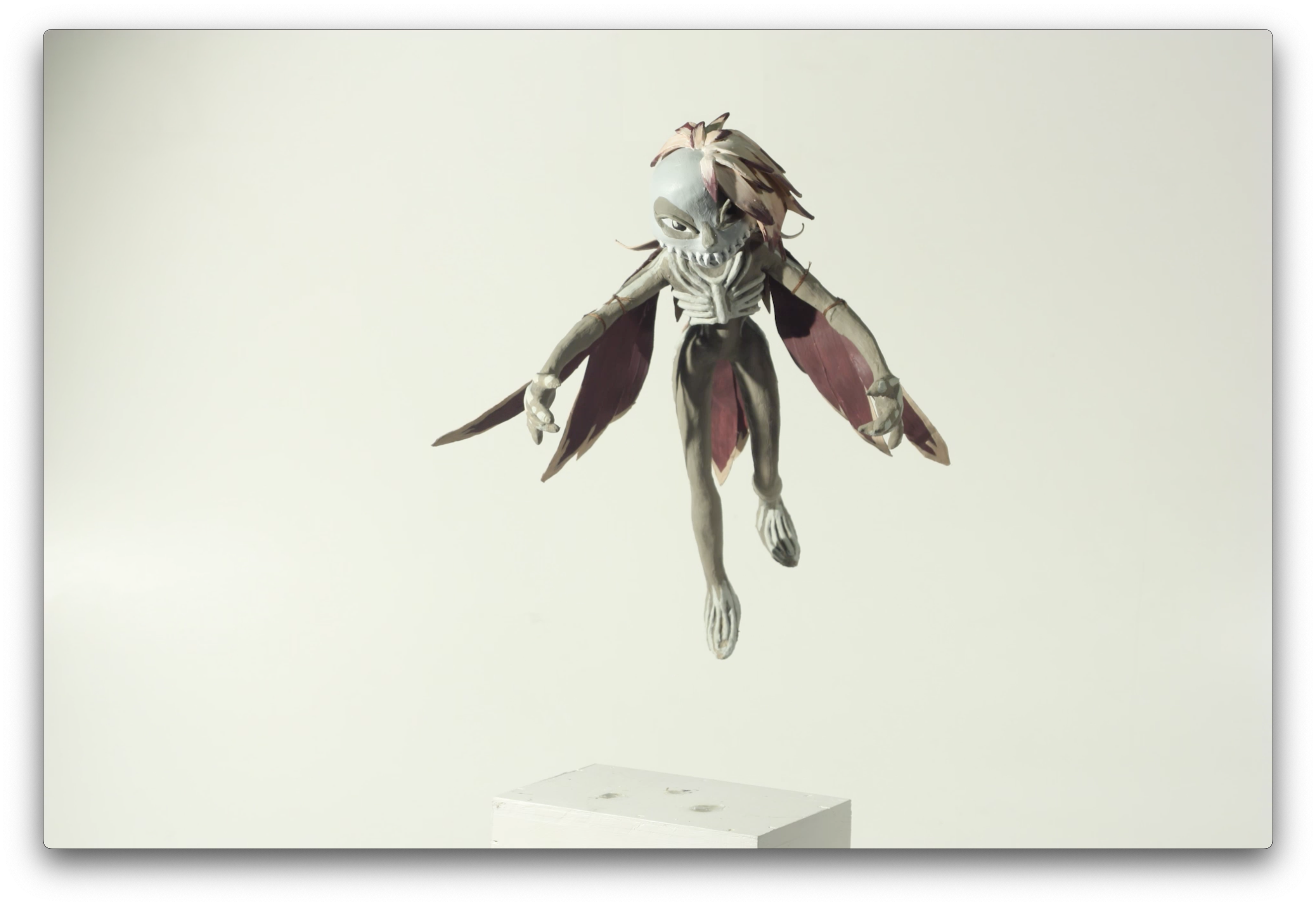
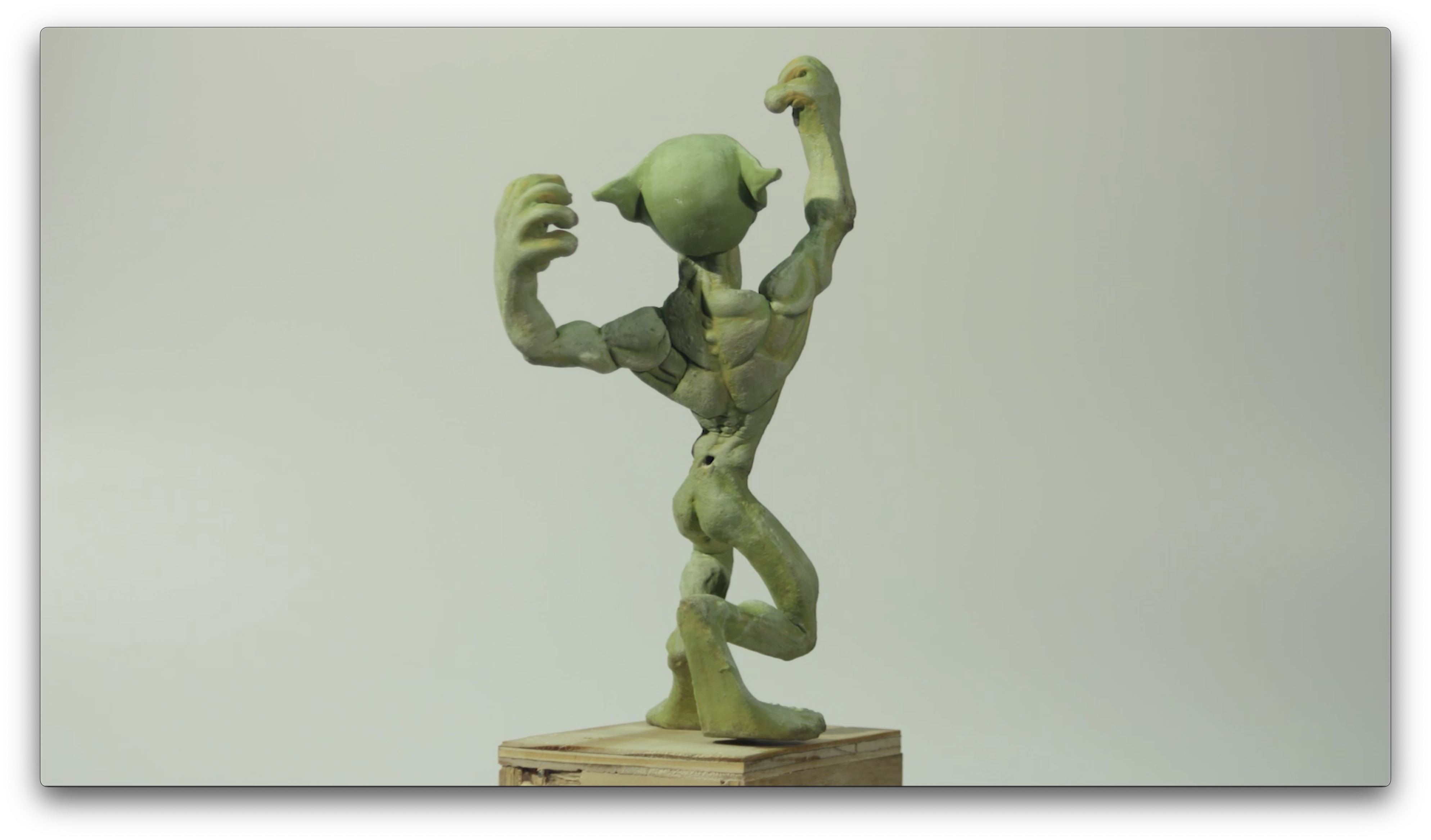
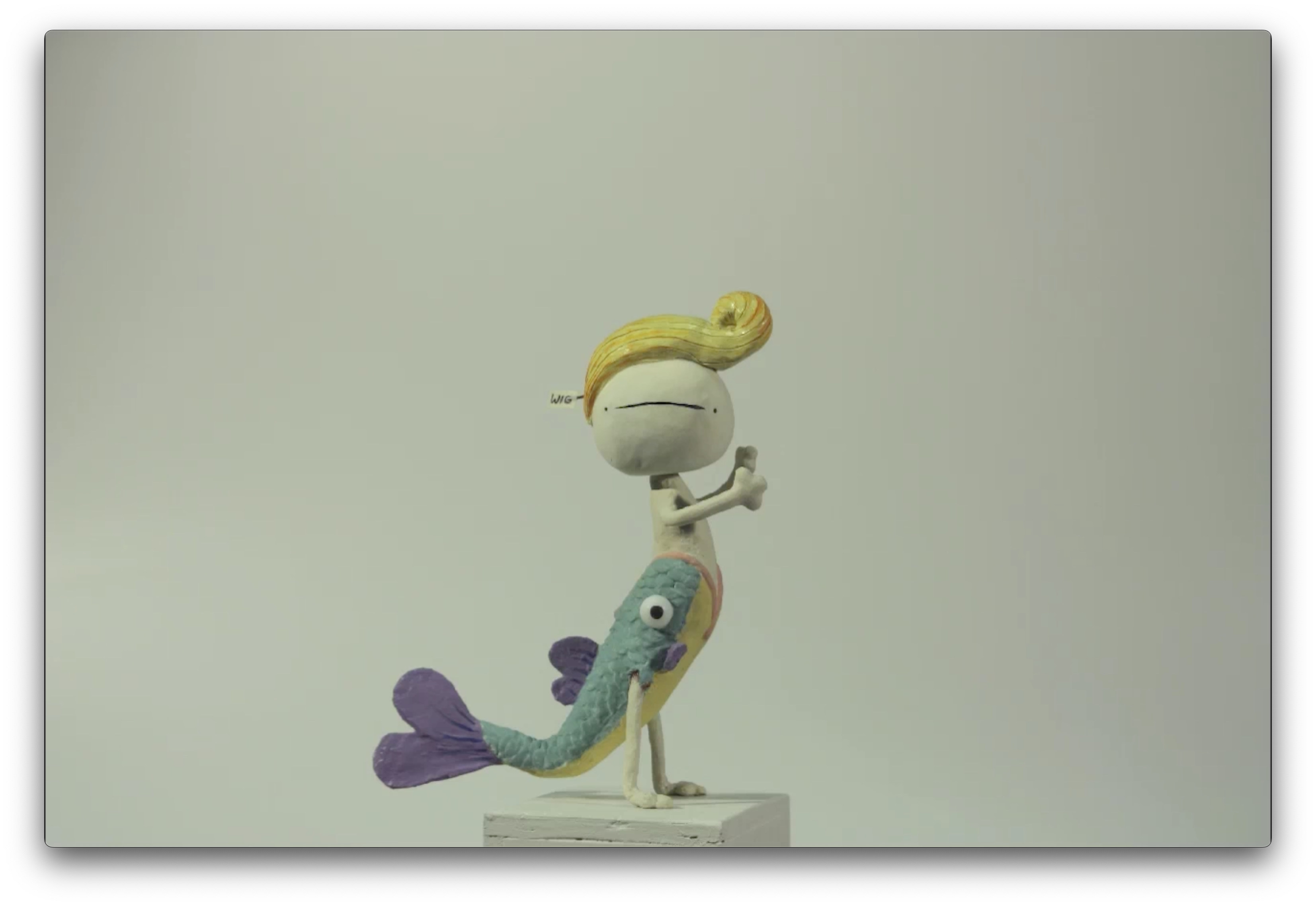
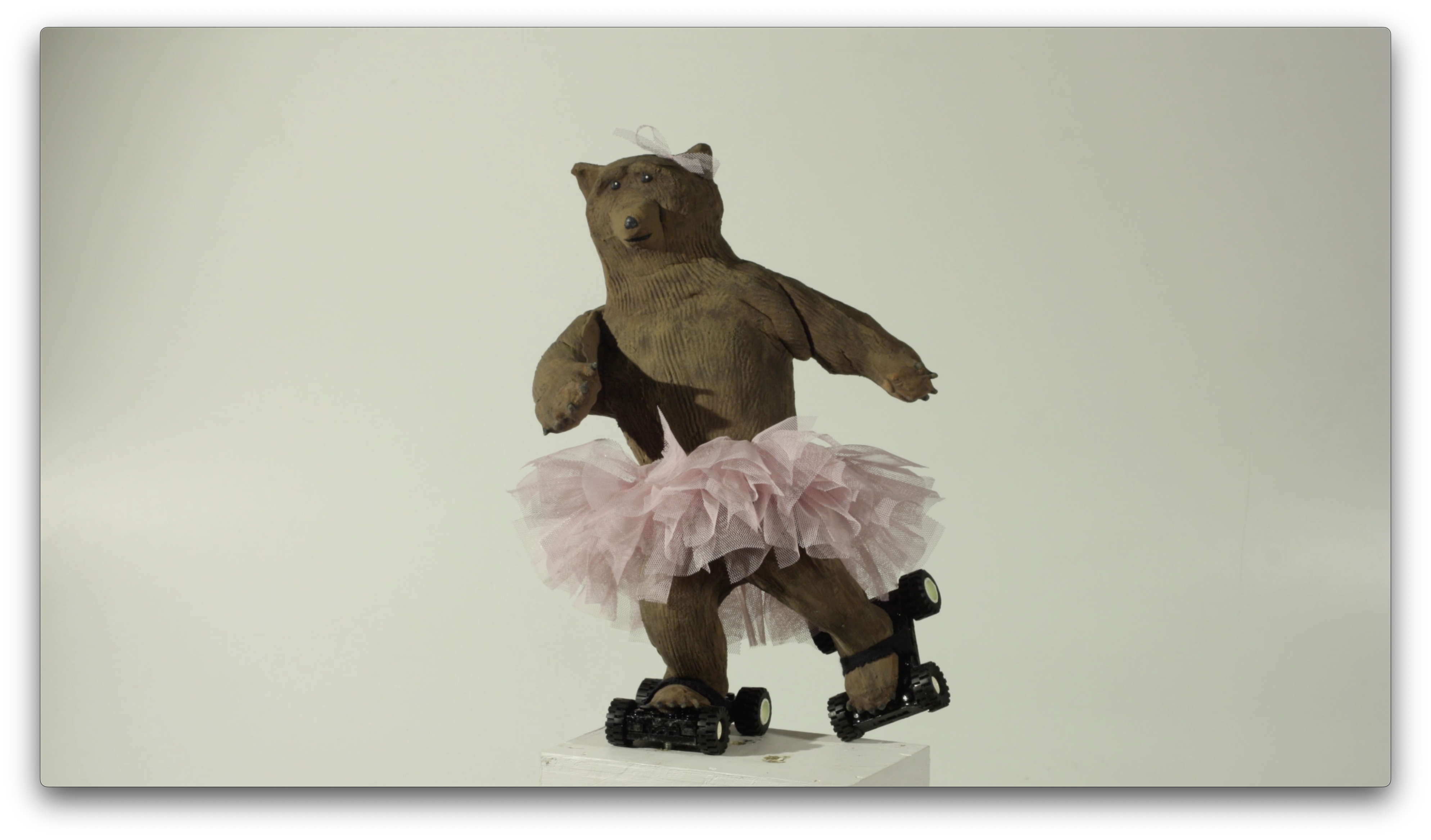
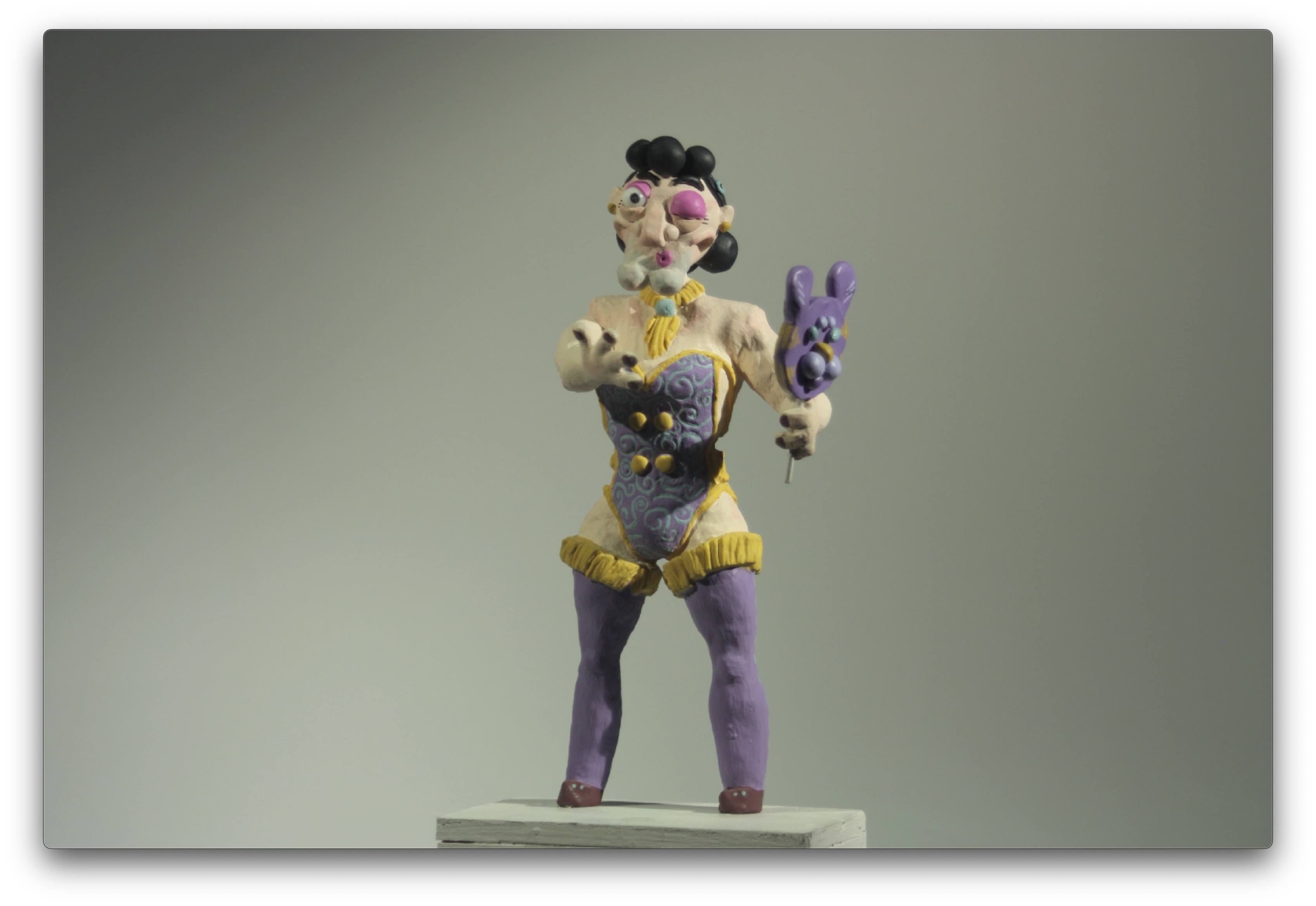
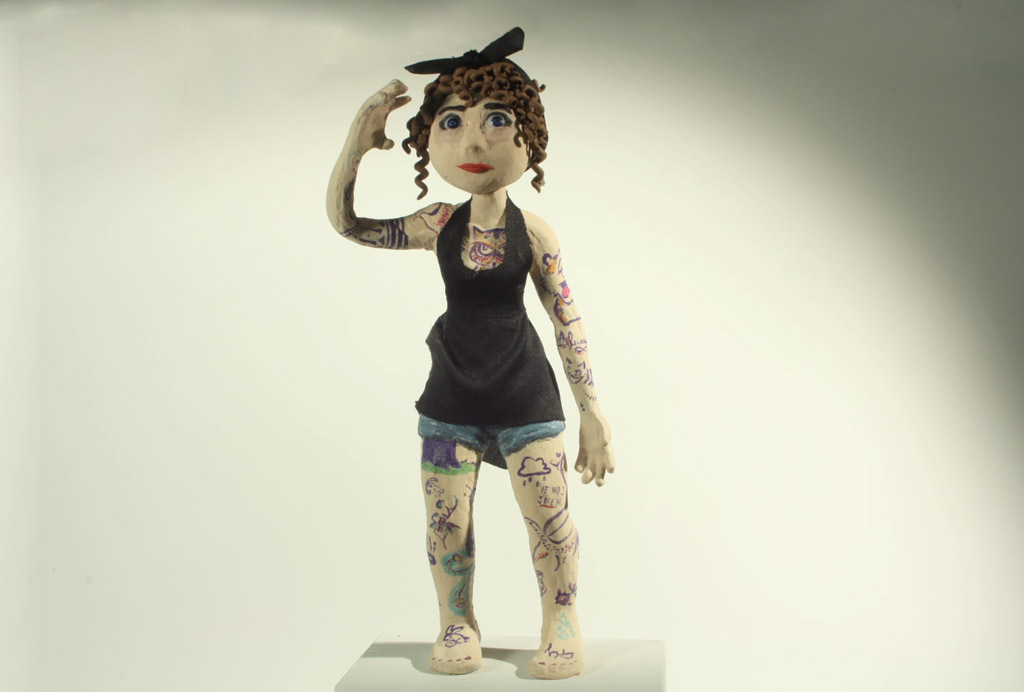
Click on the images above to see examples.
Click on the images above to see examples.
Blocking - Approx. 2 hour Time Slots
Final Shoot - Approx. 4 hour Time SlotsGo here to reserve time on a Rotation Shoot Station
RESERVATION RULES
1. Enter your name, email, and cell number in the time slots available.
2. If you do not show up in the first 15 minutes of your reserve time you may have to forfiet your time to another animator and reschedule.
3. Resolve any scehduling conflicts by reaching out to your fellow animators.
4. Be sure to Zero Outthe workstation when finished.
Four rotations at 48 frames per rotation, shot at 12 FPS, for a total of 192 frames (16 Seconds Total)
1. Rotating Hold. 3 seconds - Frames 1-36: Set up facing the camera in a "Down puppet pose" for the first 36 frames (3/4 rotation). At frame 37 begin to "open" your character towards camera.
2. Puppet Performance. 10 seconds - Frames 37-156. : Bring your puppet to life over the next 2 1/2 rotations and give them a "bit" to animate that displays some sense of their character to the audience. Be mindful of when your puppet is facing the camera and don't forget to blink. You will be animating for a total of 120 frames.
3. Rotating Hold. 3 seconds - Frames 157-192: Hold your puppet in final pose and complete the final rotation. You should end with your puppet facing the camera.
C. SETTING UP DRAGONFRAME
1. Duplicate Dragonframe "Rotate-228" project.
a. Open the original Dragonframe "Rotate-228" from the desktop/228_puppetRotation folder.
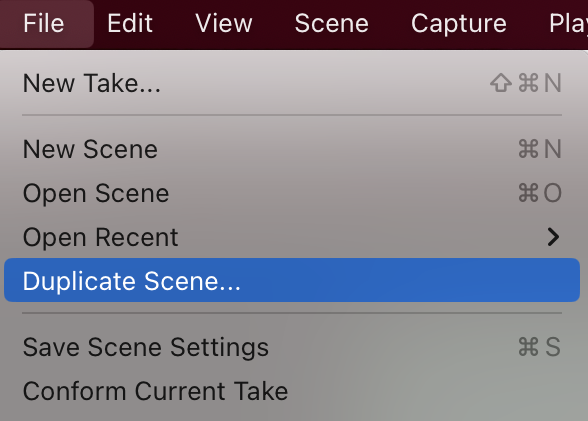
b. Create a Duplicate DF project: Go to File/Duplicate Scene, browse to your hard drive/228/puppetRotation and name the new file using your initials: "Rotate-JSL"
c. Use Separate Takes for Blocking and Final Animation Pass: Go to File/New Take. . . to create a new take for each pass and any other testing you want to do. DF will retain all settings and Check Sheet notes from take to take.
2. Instructions for Emotimo/Turntable Set-up:
Everything should be set up for the turntable to work via Dragonframe. If the turntable is not in the beginning position when you take your first exposure DF will give you an "Arc Motion" warning and ask you if you want to go to the first position. Answer "yes".
Next select the track that it offers you and click on the small arrow to the right. The turntable should reset.
Click here if the Emotimo is not communicating with Dragonframe.
3. Framing your Puppet
A level camera and a slightly longer focal length (about 50mm with the camera about 3 feet from the subject) will limit your background and give a more intimate framing to your puppet. Be sure to check your framing for beginning and end poses and make sure the 16/9 HD mask is on.
D. Blocking/Rehearsal
For the Blocking/rehearsal you will run through the 4 platform rotations as if they were final (12 fps in 1's) but you will animate your puppet every 6th to 12th frame (depending on the complexity of motion) to block out your key poses and breakdowns.
When exiting Dragonframe a window should appear asking if you want the Emotimo to "Return to Zero". Answer "Yes"
Specs: HD 1920 x 1080 h264 15FPS
4 rotations at 48 frames per rotation shot at 12FPS (16 seconds)
Platform will rotate in 1's
Animate puppet in 6's-12's depending on motion
Name: simpsonB_PuppetRotation-blocking.mp4
E. Final Animation
Go here to sign up for a Zoom Critique of your Blocking before starting your Final Animation
Final animation will be shot in 1's @ 12 FPS. We will review your blocking in class next week, make adjustments and present final animations the following week.
When exiting Dragonframe a window should appear asking if you want the Emotimo to "Return to Zero". Answer "Yes"
Specs: HD 1920 x 1080 h264 12FPS
4 rotations at 48 frames per rotation shot at 12FPS (16 seconds)
Don't forget to blink
Final puppet animation will be in 1's @ 12FPS
Name: simpsonB_PuppetRotation-final.mp4
Tip: Making your Puppet Blink
Using a small clay upper eyelid overlay you can easily make your puppet appear to have an inner thought life. Depending on the size of your puppet's eyes the following is a recommended blink timing. Try it out and adjust accordingly. Smaller eyes or fidgety characters may want a simpler blink. Larger eyes, or more thoughtful characters may take longer:
2 Frames - wide open
1 Frame - half way closed
2 Frames - fully closed
2 Frames - fully open
Central Michigan University 2026